 Skip to content
God of War 2 PCSX2 Settings: Fix Lag & 60 FPS
A lot of players still struggle to run God of War 2 smoothly on PCSX2 even in 2026. The most common problems are slow motion gameplay, laggy cutscenes, FPS drops during combat, and audio stutter during heavy scenes.
I tested these God of War 2 PCSX2 settings myself on PCSX2 2.6 and newer using a mid range gaming PC and Steam Deck. The settings below gave the best balance between smooth gameplay, stable cutscenes, and better visual quality without breaking the game with aggressive speedhacks. If you only need BIOS files, you can download compatible PS2 BIOS versions from our PS2 BIOS download page.
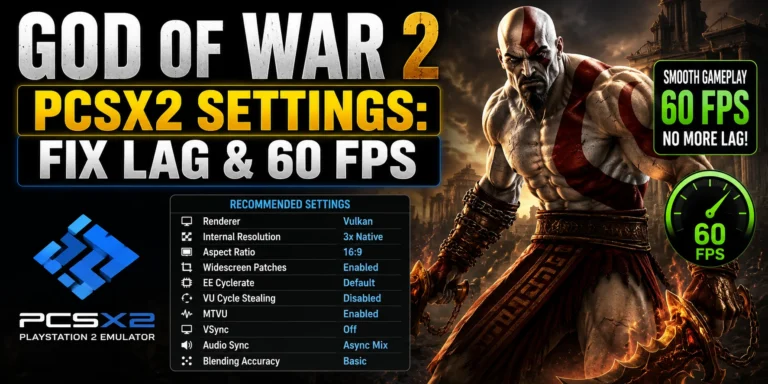
Best PCSX2 Settings for God of War 2
Getting stable performance in God of War 2 mostly depends on using balanced settings instead of random tweaks from old tutorials. Many older guides were made for outdated PCSX2 builds and no longer work properly on PCSX2 2.6 and newer versions.
During testing, the settings below gave the best results for smooth gameplay, stable boss fights, and cleaner visuals without major FPS drops or broken cutscenes.
Recommended Emulator Settings
| Setting | Best Option |
|---|---|
| Renderer | Vulkan |
| Internal Resolution | 3x Native |
| Aspect Ratio | 16:9 |
| Blending Accuracy | Basic |
| Texture Filtering | Bilinear (PS2) |
| Anisotropic Filtering | 4x |
| CRC Fix Level | Automatic |
| VSync | Off |
| MTVU | Enabled |
| EE Cyclerate | Default |
| VU Cycle Stealing | Disabled |
Why These Settings Work Better
During testing, keeping most settings close to default gave much more stable performance in God of War 2, especially during heavy combat scenes, large boss fights, and cinematic sequences with particle effects.
The game also looked much sharper at 3x Native resolution compared to original PS2 hardware while still staying smooth on modern GPUs.
Performance During Testing
Using these settings, the game stayed close to full speed on:
- GTX 1660 Super
- RTX 3060
- Steam Deck OLED
- Ryzen 5 systems
Most gameplay sections stayed smooth at 1080p, and stronger systems could push even higher internal resolutions without major slowdown.
Graphics Settings (Renderer & Resolution)
The right graphics settings can make God of War 2 look much cleaner on PCSX2 without causing major FPS drops. During testing on PCSX2 2.6 and newer, Vulkan delivered the most stable performance overall, especially during combat scenes with heavy fire effects and particles.
Best Renderer for God of War 2
For most modern systems, Vulkan gave the smoothest gameplay and fewer shader stutters compared to Direct3D11 and OpenGL.
| Renderer | Performance | Notes |
|---|---|---|
| Vulkan | Best Overall | Smooth gameplay and stable FPS |
| Direct3D11 | Very Good | Good fallback for older GPUs |
| OpenGL | Lower FPS | Better accuracy but heavier |
If Vulkan causes crashes on older hardware, Direct3D11 is usually the best alternative.
Best Internal Resolution for Smooth Gameplay
Internal resolution changes how sharp the game looks. Higher settings improve image quality, but they also increase GPU usage during combat and cutscenes.
| Internal Resolution | Visual Quality | Performance |
|---|---|---|
| Native | Original PS2 look | Fastest |
| 2x Native | Sharper image | Very Stable |
| 3x Native | Best balance for 1080p | Recommended |
| 4x Native | Very sharp image | Strong GPU recommended |
During testing, 3x Native gave the best balance between visual quality and stable gameplay on systems like GTX 1660 Super and RTX 3060.
HD Textures and Upscaling for God of War 2
Many players search for God of War 2 PCSX2 HD textures because the original PS2 image can look blurry on modern displays.
The easiest way to improve visuals is increasing internal resolution instead of downloading random texture packs from unknown sources. At 3x or 4x Native, character models, environments, and menus already look much cleaner than original PS2 hardware.
These texture settings gave the cleanest image during testing:
- Texture Filtering: Bilinear (PS2)
- Anisotropic Filtering: 4x
- Mipmapping: Automatic
For most players, simple upscaling already improves the game enough without needing heavy texture replacements.
Fixing God of War 2 Slow Motion and Cutscene Lag
One of the most common problems in God of War 2 PCSX2 is slow motion gameplay during cutscenes, boss fights, and heavy combat scenes. During testing, the issue was usually caused by incorrect speedhack settings rather than weak hardware.
A lot of older PCSX2 guides still recommend aggressive tweaks for extra FPS, but modern PCSX2 2.6 and newer builds already handle optimization much better by default. In many cases, those old tweaks actually make the game slower or unstable.
FPS drops are usually most noticeable during the Colossus of Rhodes battle, large enemy groups, and fire heavy combat scenes.
Best Settings to Fix Slow Motion
During testing on a GTX 1660 Super, RTX 3060, and Steam Deck OLED, these settings gave the most stable gameplay without broken cutscenes or audio desync.
Why God of War 2 Runs in Slow Motion
The game becomes heavier during cinematic scenes because it pushes large environments, particle effects, shadows, camera transitions, and streaming audio at the same time.
If PCSX2 is overloaded or badly configured, gameplay speed drops below normal and everything starts moving slower than intended.
This usually happens because of:
- Aggressive speedhacks
- Very high internal resolution
- Heavy blending settings
- Weak CPU performance
- Background shader compilation stutter
Which Speedhacks Actually Help
For most systems, the only speedhack that consistently improved performance during testing was MTVU.
MTVU helps reduce CPU load during combat and works especially well on modern multi core processors.
The rest of the speedhack settings worked best close to default values.
Speedhack Settings That Break the Game
These older tweaks caused the most problems during testing:
- High VU Cycle Stealing
- Underclocked EE Cyclerate
- Unsafe preset configurations
- Multiple aggressive hacks combined together
These settings often caused:
- Slow motion gameplay
- Broken cutscene timing
- Audio crackling
- FPS instability during boss fights
Settings for Low End PCs
If the game still struggles on weaker hardware, lowering a few graphics settings can improve performance without hurting visuals too much.
These adjustments helped stabilize gameplay during testing:
- Lower Internal Resolution from 3x to 2x
- Keep Blending Accuracy on Basic
- Disable unnecessary enhancement filters
- Close background applications before launching PCSX2
Even at 2x Native resolution, God of War 2 still looks much sharper than original PS2 hardware.
How to Add Widescreen (16:9)
By default, God of War 2 runs in the original PS2 4:3 aspect ratio. On modern monitors and TVs, this leaves black bars on both sides of the screen. The good news is that PCSX2 2.6 and newer already includes built-in widescreen patch support, so the setup is much easier now.
During testing, the widescreen patch worked well on PC, Steam Deck OLED, and 1080p Smart TVs without major stretching issues.
How to Enable Widescreen in PCSX2
Steps | What to Do |
1 | Open PCSX2 |
2 | Go to Settings → Graphics |
3 | Set Aspect Ratio to 16:9 |
4 | Open System Settings |
5 | Enable Automatic Widescreen Patches |
6 | Restart the game |
Once enabled, the game fills modern displays much better while keeping gameplay smooth.
Best Widescreen Setup During Testing
| Setting | Recommended Value |
|---|---|
| Aspect Ratio | 16:9 |
| Widescreen Patches | Enabled |
| Internal Resolution | 3x Native |
| Renderer | Vulkan |
Common Widescreen Problems
Some users may still notice:
- Slight HUD stretching
- Minor camera glitches during cutscenes
- Black lines in rare scenes
- Performance drops on weaker GPUs at higher resolutions
Most of these issues become less noticeable at 2x or 3x Native resolution.
Popular Cheats
Cheat | Effect |
Infinite Health | Unlimited health |
Infinite Magic | Unlimited magic attacks |
Max Red Orbs | Faster weapon and magic upgrades |
Only download .pnach cheat files from trusted PCSX2 community sources to avoid corrupted or unsafe files.
God of War 2 on Steam Deck & Android
God of War 2 runs very well on both Steam Deck and newer Android phones with the right emulator settings. During testing, Steam Deck handled the game smoothly at 2x to 3x Native resolution using Vulkan renderer, while Snapdragon 8 Gen 2 Android devices performed best in AetherSX2 at 2x resolution.
For stable gameplay, keeping speedhacks close to default worked better than aggressive tweaks on both platforms.
Conclusion
God of War 2 still remains one of the best looking and most demanding PS2 games to emulate properly, but modern PCSX2 2.6+ builds make the experience much smoother than older emulator versions.
During testing, the biggest improvements came from using stable speedhack settings, Vulkan renderer, proper BIOS files, and avoiding outdated tweaks from old forum guides. Once configured correctly, the game ran smoothly at higher resolutions on PC, Steam Deck, and newer Android devices.