 Skip to content
PS2 Emulator for Linux That Actually Works in 2026
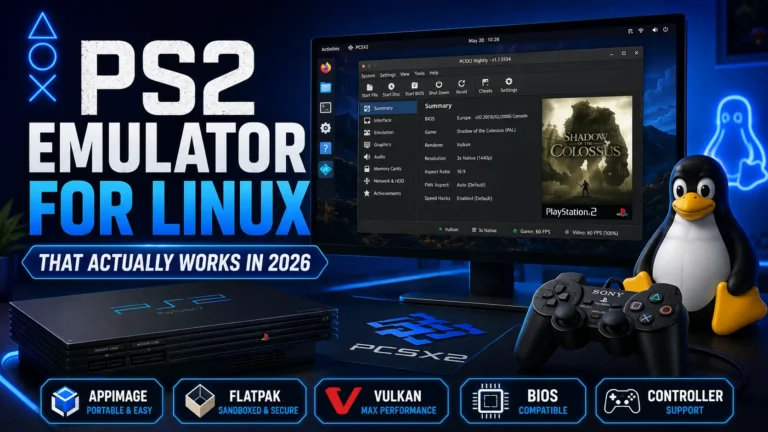
If you want a PS2 emulator for Linux, PCSX2 is the best option for most users in 2026. It works well on Ubuntu, Linux Mint, Fedora, Arch, and Steam Deck, but the setup can feel confusing if you are new to Linux.
I checked the current PCSX2 Linux setup methods and focused on the problems users actually face, like AppImage vs Flatpak, BIOS folder location, Vulkan settings, controller setup, and permission issues. Once these parts are set correctly, Linux can run PS2 games smoothly without needing Windows.
Can You Play PS2 Games on Linux
Yes, you can play PS2 games on Linux using PCSX2. It works on popular Linux systems like Ubuntu, Linux Mint, Fedora, Arch, and Steam Deck. In many cases, Linux performance is strong if your PC has decent hardware and the emulator is set up correctly.
The confusing part is usually not the emulator itself. Beginners often get stuck choosing between AppImage and Flatpak, finding the correct BIOS folder, fixing file permissions, or setting up a controller. Once these parts are handled, Linux can be a very good platform for PS2 emulation.
Best PS2 Emulator for Linux
The best PS2 emulator for Linux is PCSX2. It has the strongest game compatibility, better performance options, save states, memory card support, widescreen patches, controller settings, and regular updates. For most Linux users, this is the emulator you should start with.
Play! is another PS2 emulator that supports Linux, but it is better treated as an alternative, not the main choice. It can be useful for testing, but PCSX2 is still the better option if you want smoother gameplay, more settings, and better support for popular PS2 games.
PCSX2 AppImage vs Flatpak on Linux
For most Linux users, Flatpak is the easiest way to install PCSX2 because it handles updates cleanly and works well across many Linux distros. AppImage is better if you want the official portable build and do not want to install PCSX2 through your system package manager.
| Install Method | Best For |
|---|---|
| AppImage | Official portable build |
| Flatpak | Easy updates and sandboxed install |
| Distro Package | Users who prefer their Linux package manager |
| Snap | Ubuntu users who already use Snap |
If you are new to Linux, start with Flatpak because it is simple and easier to keep updated. If you want the most portable PCSX2 build, use AppImage. Distro packages and Snap can work too, but they may depend on your Linux setup and how updated your package source is.
How to Install PCSX2 on Linux
Installing PCSX2 on Linux is not hard, but the best method depends on your distro. PCSX2 officially supports Linux through AppImage and Flatpak, so start with one of those before trying older package guides.
AppImage Method
The AppImage method is best if you want a portable PCSX2 build. Download the latest Linux AppImage from the official PCSX2 site, make it executable, then open it like a normal app.
If it does not open, right click the file, go to permissions, and allow it to run as a program. AppImage is a good choice if you want PCSX2 in one file without installing it through your system app store.
Flatpak Method
The Flatpak method is easier for many beginners because updates are simple and it works across many Linux distros. PCSX2 is available on Flathub, and you can install it from your software center if Flatpak is enabled.
You can also use this short command:
flatpak install flathub net.pcsx2.PCSX2
Ubuntu and Linux Mint Method
On Ubuntu and Linux Mint, Flatpak is usually the easiest path if you want a current PCSX2 build. Some Ubuntu based systems may also show PCSX2 in the software manager, but that version can be older.
If you want fewer problems, use Flatpak or the official AppImage instead of random PPA commands from old guides.
Fedora Method
On Fedora, Flatpak works well because Fedora already supports Flatpak nicely. Install PCSX2 from Flathub through the software app or use the Flatpak command.
If you prefer Fedora packages, check the version number first. For PS2 emulation, a newer PCSX2 build is usually better than an old system package.
Arch Linux Method
On Arch Linux, you can use your package manager or choose the official AppImage. Arch users usually prefer package manager installs, but the official AppImage is still useful if you want a clean portable build.
The main thing is to keep PCSX2 updated. Newer builds often improve compatibility, controller support, and graphics fixes.
Steam Deck Desktop Mode
Steam Deck runs Linux, so PCSX2 works well in Desktop Mode. You can install it through EmuDeck, Flatpak, or AppImage, depending on how much manual setup you want.
For most Steam Deck users, EmuDeck is the easiest path because it sets up folders and emulator settings for you. If you want full control, install PCSX2 manually in Desktop Mode and add it to Steam later.
How to Add PS2 BIOS on Linux
PCSX2 needs a PS2 BIOS file before it can run games on Linux. The BIOS folder can be different depending on how you installed PCSX2. AppImage and Flatpak may store emulator files in different places, so always check the BIOS path shown inside PCSX2 settings instead of guessing.
This is not a full BIOS setup guide. If you still need a BIOS file, visit our PS2 BIOS download page before adding it to PCSX2. You can also learn how to dump your own PS2 BIOS from a console you own if you want to create your own backup.
Best PCSX2 Settings for Linux
Good settings matter a lot on Linux because performance can change based on your graphics driver, renderer, audio system, and controller setup. Start with safe settings first, then improve graphics after the game runs smoothly.
Best Renderer for Linux
Use Vulkan first. It usually gives the best balance of speed, smooth frame pacing, and lower stutter on modern Linux systems. This is the best starting point for most users on Ubuntu, Fedora, Arch, Linux Mint, and Steam Deck.
Use OpenGL only as a backup if Vulkan gives you black screens, texture bugs, or driver issues. OpenGL can still work well, but Vulkan is usually the better choice for modern PCSX2 builds.
Best Internal Resolution
For a low end Linux PC, start with Native or 2x resolution. This keeps the game lighter and helps reduce lag.
For a mid range PC, use 3x resolution if the game stays smooth. For a stronger gaming PC, 4x or higher can look much sharper, but only use it if your FPS stays stable.
Controller Settings
PCSX2 works with many controllers on Linux, including Xbox controllers, DualShock, and DualSense. If your controller does not work right away, check the PCSX2 controller settings first and make sure Linux detects the device.
On Steam Deck or Steam launched games, Steam Input can help with controller mapping. If buttons feel wrong, test the controller in Linux settings first, then remap inside PCSX2.
Audio Settings
Linux audio usually works through PipeWire or PulseAudio. Most modern distros use PipeWire now, and PCSX2 should work fine with default audio settings.
If you hear crackling, delay, or broken sound, do not change every setting at once. First check if the game is running at full speed. Audio problems often happen when the game itself is lagging. Then test the other audio backend if PCSX2 gives you that option.
Fix Common PCSX2 Linux Problems
PCSX2 works well on Linux, but small setup issues can stop it from running properly. Most problems come from permissions, Flatpak sandboxing, graphics drivers, BIOS paths, or controller detection.
PCSX2 AppImage Not Opening
If the PCSX2 AppImage does not open, the file may not have permission to run. Right click the AppImage, open Properties, go to Permissions, and allow it to run as a program.
You can also move the AppImage to a simple folder like Downloads or Applications. Avoid running it from a locked folder or external drive until you know it works.
Flatpak Cannot Find BIOS Folder
Flatpak apps use a sandbox, so PCSX2 may not see the same folders as a normal Linux app. If the BIOS does not show up, open PCSX2 settings and check the exact BIOS directory shown inside the emulator.
Put the BIOS file in the folder PCSX2 is reading from. Do not guess the path, because Flatpak and AppImage can use different config folders.
Controller Not Detected
If your controller is not detected, first check if Linux can see it outside PCSX2. Test it in your system settings or Steam Input if you are using Steam Deck.
Then open PCSX2 controller settings and remap the buttons manually. Xbox controllers, DualShock, and DualSense usually work well, but some controllers need Steam Input or a manual layout.
No Audio in PCSX2
If there is no sound, first check if the game is running at full speed. Audio can break or stutter when the game itself is lagging.
Also check your Linux audio setup. Most newer distros use PipeWire, while some older setups use PulseAudio. Restarting PCSX2 after changing audio output can fix simple no sound issues.
Vulkan Not Showing
If Vulkan does not appear in PCSX2, your graphics driver may be missing Vulkan support. This is common on old GPUs, fresh Linux installs, or systems using basic open source drivers without full Vulkan support.
Update your GPU drivers first. If Vulkan still does not show, use OpenGL as a backup renderer. OpenGL is not always as fast, but it can still run many PS2 games well.
Game Running Slow
If a game runs slow, lower the internal resolution before changing advanced settings. Start with Native or 2x resolution, then increase it only after the game runs smoothly.
Also close background apps and use Vulkan if your system supports it. On weak hardware, smooth gameplay matters more than high resolution or heavy texture settings.
Permission Issues
Permission issues can happen when BIOS files or games are stored on another drive, an external USB, or a folder PCSX2 cannot access. Move the files to a normal user folder first, like Documents, Games, or Downloads.
If you use Flatpak, you may need to give PCSX2 access to the folder where your BIOS and game files are stored. This is one reason many beginners find Flatpak folder access confusing at first.
Steam Deck and Linux PS2 Emulation
Steam Deck is Linux based, so PCSX2 works well on it. Most users set it up through Desktop Mode, Flatpak, or EmuDeck. EmuDeck is easier for beginners because it creates folders, adds emulator settings, and helps organize games without too much manual work.
If you are using Steam Deck, start with stable settings, correct BIOS setup, and proper controller mapping before increasing resolution. Higher graphics settings can look better, but smooth gameplay matters more on a handheld device.
Is PS2 Emulation on Linux Safe and Legal
PS2 emulation on Linux is safe if you download PCSX2 from the official PCSX2 website, Flathub, or another trusted source. Avoid random emulator download pages, fake BIOS sites, and ISO websites that bundle extra files or push too many download buttons. These are the places where users usually run into unsafe files, broken builds, or misleading installers.
The legal side depends on how you use the BIOS and game files. PCSX2 itself is fine to use, but you should handle BIOS and games responsibly. Use files from sources you trust, avoid random ISO downloads, and keep your setup clean. This protects your Linux system and gives PCSX2 a better chance of running games without errors.
Conclusion
If you want a PS2 emulator for Linux in 2026, PCSX2 is still the best choice. It has the strongest compatibility, useful settings, active updates, and works well on Ubuntu, Linux Mint, Fedora, Arch, and Steam Deck.
For the best start, install PCSX2 through AppImage or Flatpak, use Vulkan as your first renderer, add the BIOS in the correct folder, and set up your controller before changing advanced settings. Once these basics are correct, Linux can run PS2 games smoothly without needing Windows.